Review the video to see how it works.
Onboarding: Setting Up New User Account
Step by Step
NEEDED:
Web-enabled device: computer, tablet, or phone and it does not have to be their own device
Users to have access to their email account
This can be a new email account set up to ensure the abuser does not have access, but you will need to be able to authenticate your new account.
Note: This is the ONLY time we will directly communicate to the user via email
Authentication correspondence will come from no-reply@ebinra.com
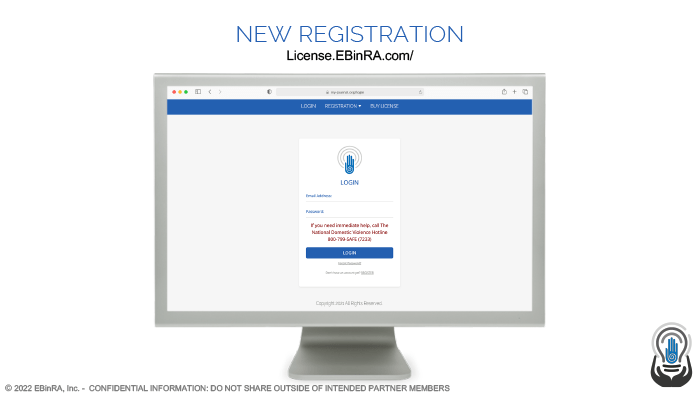
Step 1 – Setting Up A New Account
Go to https://license.ebinra.com/
Step 2
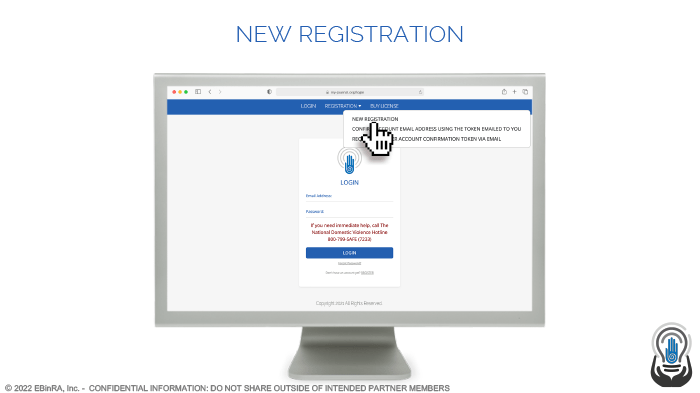
At the top of the screen, click, ‘REGISTRATION,” then “NEW REGISTRATION“
Step 3
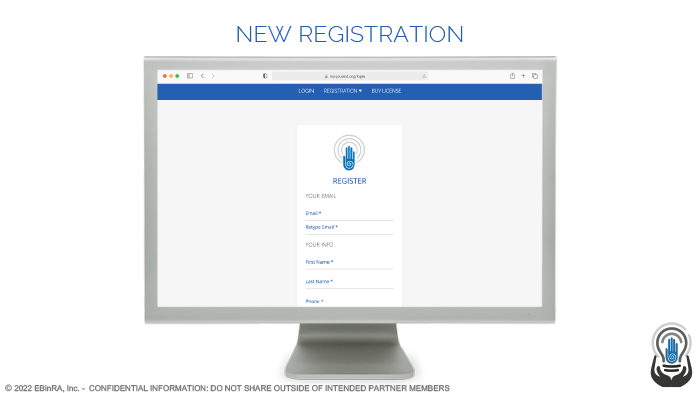
User” complete all the fields. Once submitted, all your details will be encrypted and the only person to have access will be you the user.
NOTE: Please be advise if you generate a report, your name and contact information will be printed on that report. The User decides if, when, and to whom a report is ever generated and released.
Step 4
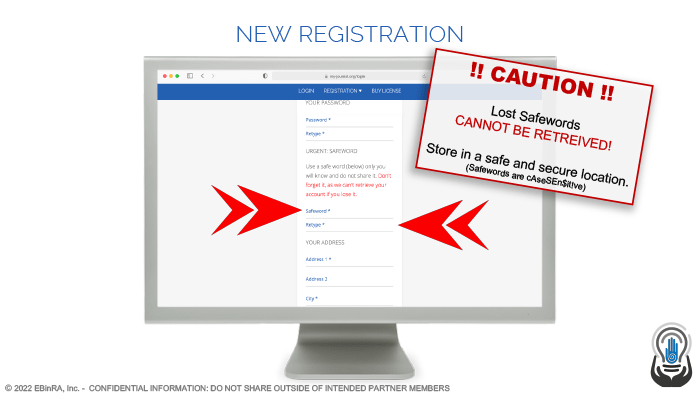
You will need to create a SAFEWORD in addition to a password – this is a word that ONLY the user would know. Please be advised NOT to use commonly known words or passwords but something unique to you.
NOTE: The system can help you retrieve lost passwords but we CANNOT RETRIEVE A SAFEWORD. SAFEWORDs are case sensitive, so make sure you remember it and/or write it down and keep it safe in a very secure location. The SAFEWORD protects sensitive areas of information inside their account.
Step 5
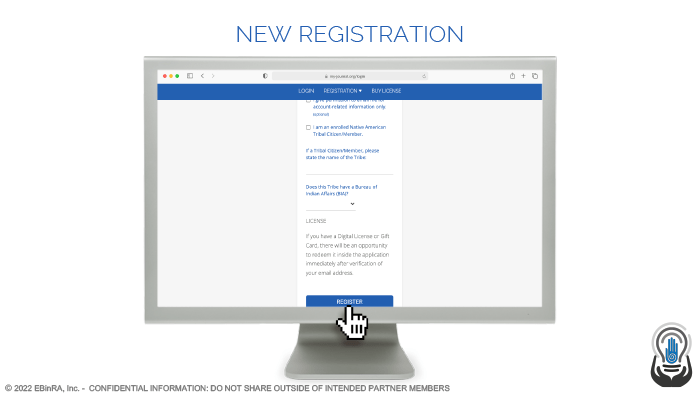
Complete the rest of the information, taking note to the requested information pertaining to Native Americans, Alaska Natives, and Pacific Islanders (Indigenous people), as VictimsVoice also helps navigate tribal jurisdiction and legal compliance in tribal courts.
Step 6
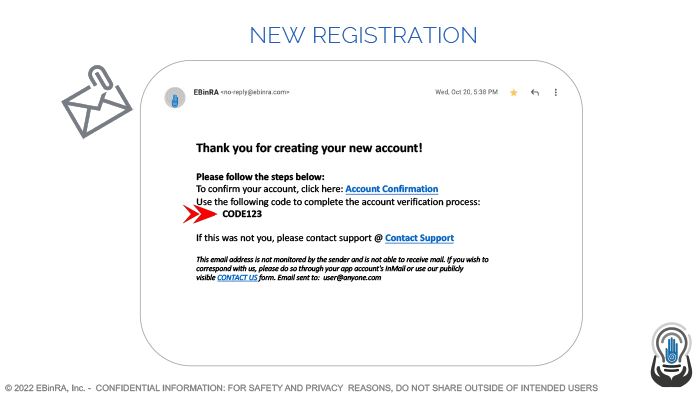
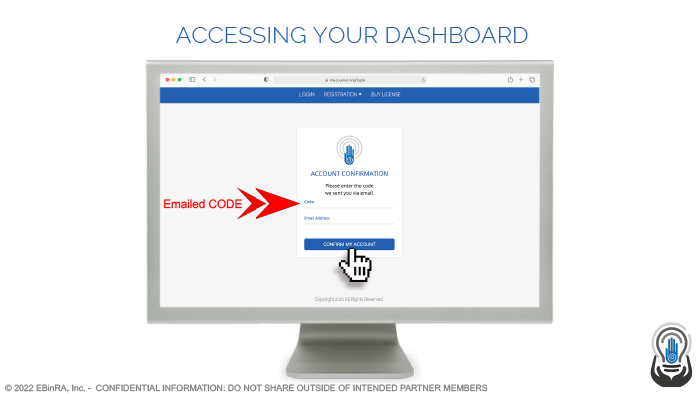
Once user submits your information, you will receive a one-time email from “no-reply@ebinra.com” to confirm your account. There is a code they will use to complete your account creation (as highlighted with red arrows in the below image). Inside the email, you can click on the “Account Confirmation” link to add your one-time code and email address used to create the account.
NOTE: You will not be able to access their account until you confirm with the code.
Step 7
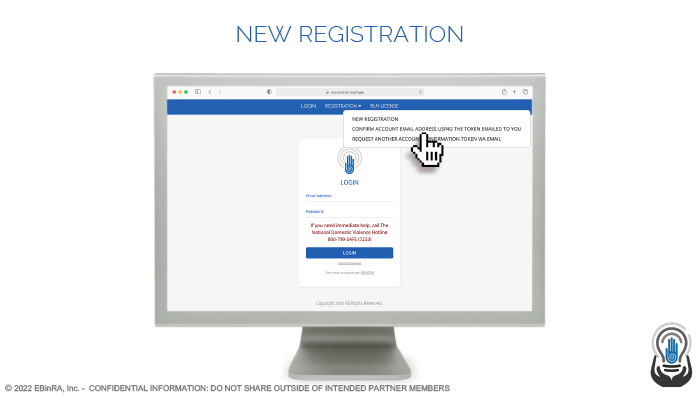
If you are not automatically redirected to add the confirmation code, you can go to https://My-Journal.org and at the top of the screen, click REGISTRATION > CONFIRM ACCOUNT EMAIL USING THE TOKEN EMAILED TO YOU to enter the emailed one-time confirmation code (also called a “TOKEN”).
Step 7 – Alternative
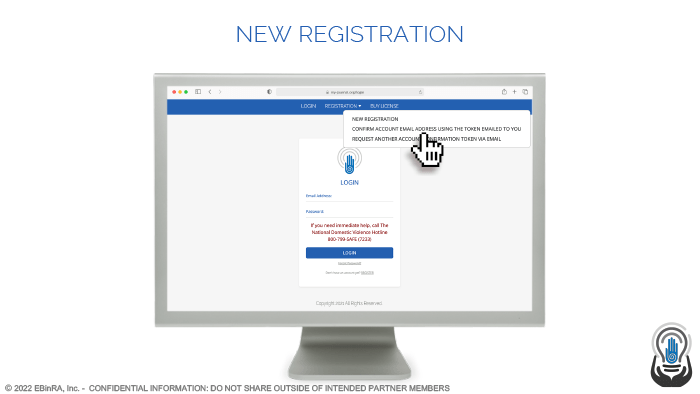
Occasionally, our confirmation emails get caught in spam filters. If this happens and they do not receive an email with the code, they can force a new email with a new code by following the same instructions as Step 7, but click “REQUEST ANOTHER ACCOUNT CONFIRMATION TOKEN VIA EMAIL” instead, as shown below.
Step 8
The image below shows what the confirmation screen will look like. The code (aka, TOKEN) and email address are entered here.
Step 9 – Activating The Live Account
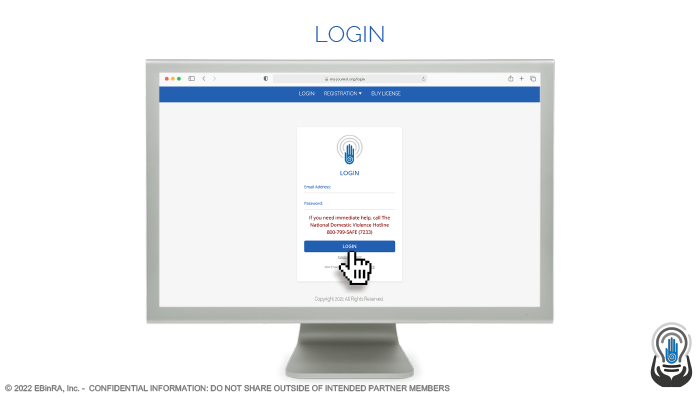
The user can then log back into their account to redeem the license Activation Code I provide to them using their email address and the password they created.
Step 10
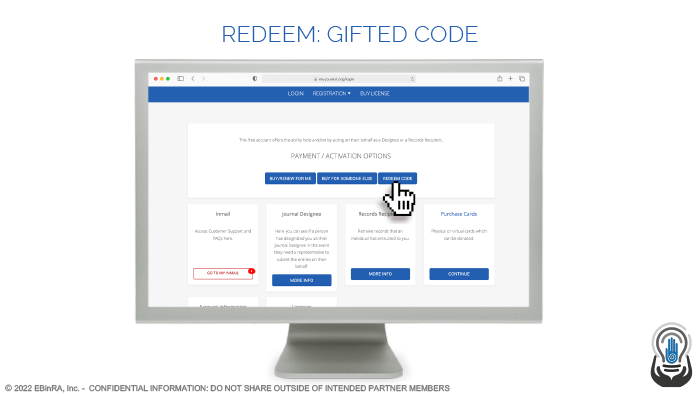
Once logged in, you will see your dashboard. At the top, you will see an option to “REDEEM.”
Step 11
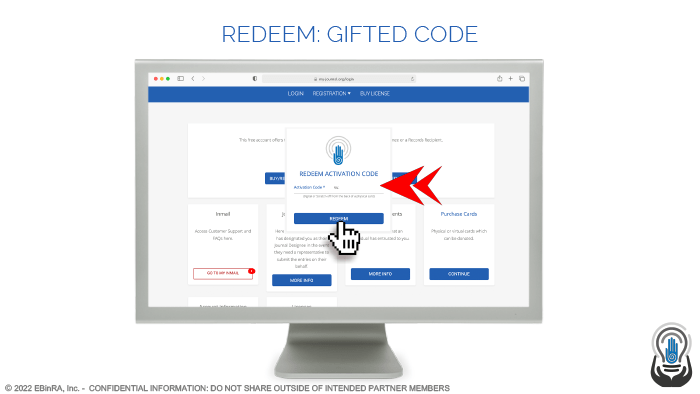
The pop-up box will request the nine character alpha-numeric code (not including the “VV”) that I provided in email.
Step 12
Once activated, you can begin to use your fully-featured VictimsVoice account. To begin documenting, just click the top button – “START DIARY.”
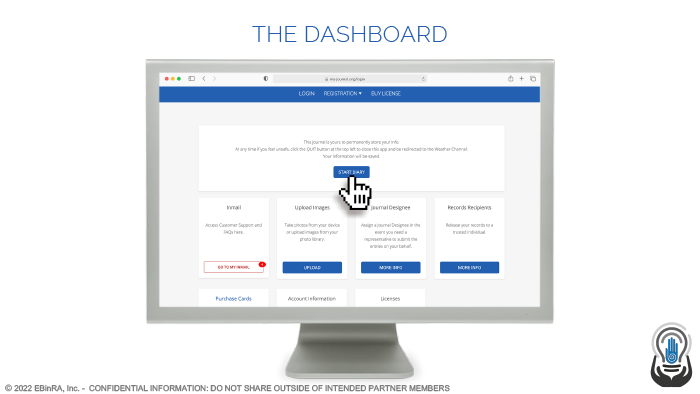
Step 13
SPECIAL NOTE: All the areas in the app shown here with a star will require the user to enter your SAFEWORD to access that information.
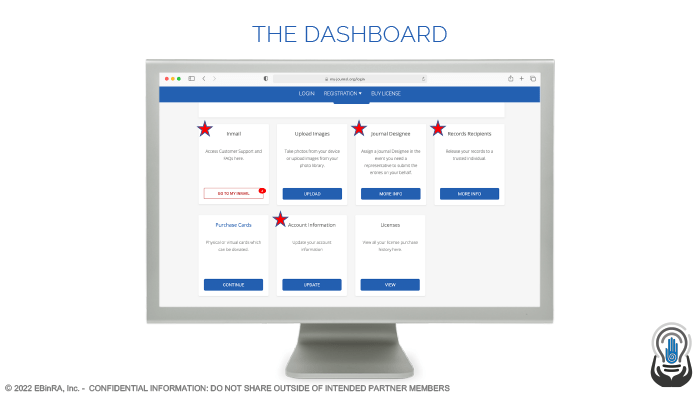
Step 14
Once you click in one of those areas, a screen will appear asking for your SAFEWORD.
NOTE: Remember, SAFEWORDs are case sensitive!
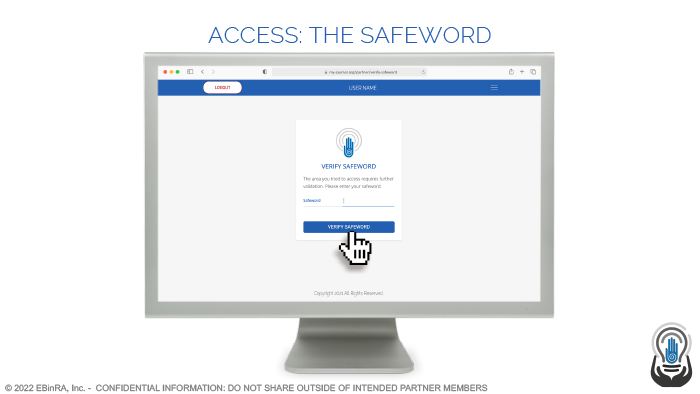
Step 15
With the correct SAFEWORD, you will receive a confirmation and can click “CONTINUE” to proceed.
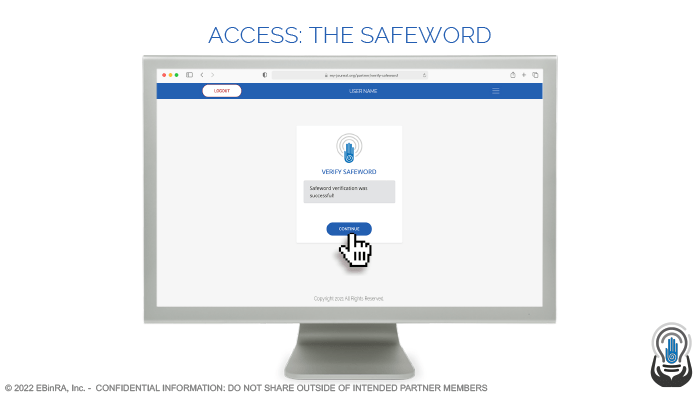
 Catapult Outreach